




Do you have an email account like “username@charter.net”? Do you want to add this email account or some of your email data to the MS Outlook email client? If so, this article will show you the process. Here we will explain how to import/add emails from Charter to Outlook. So, let’s get started.
Carter Communications is a leading American telecommunications company. It is mainly known by the Spectrum brand. Many users in the United States use their Internet, mobile phone, cable and other services.
Users who subscribe to any of Charter Communications/Spectrum’s services also get free access to their webmail service. This allows users to create a free email account and use it to send/receive emails.
Prior to the launch of the Spectrum brand, the email service was managed directly by Charter Communications. Therefore, the email accounts provided by Charter had the domain @charter.net.
These email accounts can currently be accessed through the Spectrum Webmail service. Users can easily access their Charter accounts by logging into Spectrum Webmail through a web browser.
IMAP access is also supported, so users who wish to access these email accounts through a desktop email client can do so.
Also Read: – How to backup emails from iiNet Webmail to computer?
Why import/add charter email to Outlook?
There are many reasons why users would need to put email data from a Charter account in Outlook, some of them may be as follows: –
- Email access through Outlook: – Many users find it more convenient to access their email accounts through an application like Outlook for a variety of reasons. Offers secure offline email access, automatic local backups, and more.
- Protect email account data:- Users like to download and import emails into Outlook to create secure local copies of their emails for future use.
- Transfer email account data:- Outlook also serves as a medium to transfer data from one account to another. Therefore, when users add email accounts to Outlook, they can also transfer email data from that account to other accounts.
How to setup/add Charter email account in MS Outlook?
Apply these given steps on MS Outlook desktop email account and add your complete email account:-
- Launch MS Outlook application on your desktop.
- Click on Archive button on the top bar and click Add account from the next screen.
- Enter your charter account email address and move forward advanced options.
- Select option Let me configure manually and click Connect.
- From the advanced settings screen option, choose the option IMAP.
- Enter the IMAP account login details as shown: –
- incoming mail server: – mobile.charter.net
- Outgoing mail server: – mobile.charter.net
- Click on Connect and establish a connection to the charter mail server.
- Test the connection and Outlook will begin receiving all email data from the charter account.
- Now easily access charter email account in MS Outlook.
Limitation of the method
- Only for those users who want to add their full charter email account and start using it with MS Outlook.
- Download all email account data and replicate the charter account mailbox to the user’s machine.
How to import charter email to Outlook? (Adding selective emails)
Instead of adding a new account to Outlook, some users may want to import specific emails from a charter email account to an existing email account they are using in MS Outlook. This is also possible by backing up emails from the charter account into Outlook compatible data files.
Best and Fast Email to Outlook Backup Solution
A quick and efficient solution to backup charter account emails is eSoftTools IMAP Backup and Migration Software. With this software, you have the ability to download emails from a charter account and save them to Outlook compatible files such as PST and MSG.
Allows users to securely download emails from selective folders in their Charter account. It also provides a date-based email filter feature for more targeted email extraction. Provides resulting files in Unicode format, compatible with all versions of Outlook.
DOWNLOAD NOW Buy now
How to use IMAP backup software to import charter email into Outlook?
The method to import charter emails to Outlook using the IMAP backup tool is a two-step process. Following both steps will allow you to add charter emails to your existing Outlook profile.
Step 1: – Download Charter Email in Outlook PST via IMAP
- Download, install and run eSoftTools IMAP Email Backup Software.
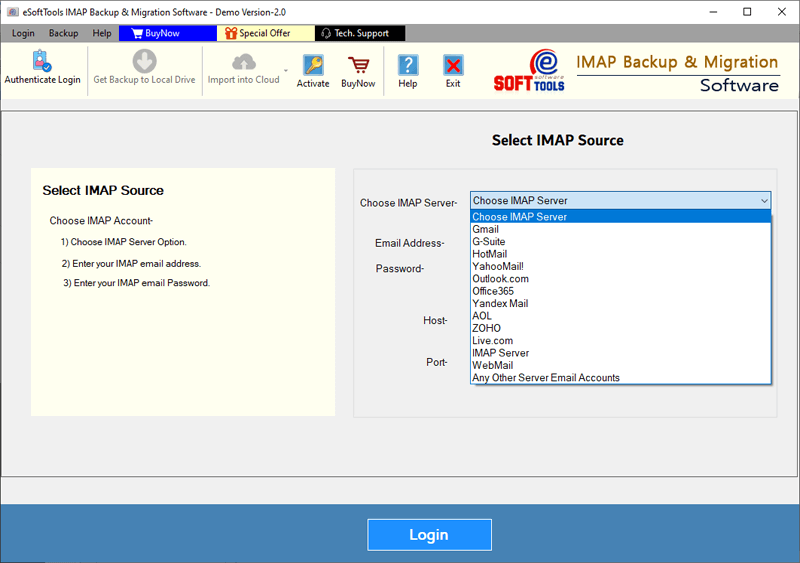
- From the drop-down list of mail service options, select any of these options: – Choose IMAP server, IMAP Server, webmaileither Any other email account on the server.

- Enter charter account details to log in: –
- Email address: – Charter account email address (i.e. example@charter.net)
- Password: – password associated with the charter account.
- Host: – mobile.charter.net
- Port:- 993 (This is the default value, so leave it as is)

- Hit the Access after filling all the necessary details in the respective fields.
- Upload email folders to those available in your charter email account.

- Choose specific folders from which you want to download emails.
- Select the save option “Save to PST” and apply other settings to save location selectionand email filter.

- Finally, click Save backup and start downloading and saving emails from Charter account in PST to your drive.

Step 2: – Import PST (with Charter account emails) into Outlook
- Launch MS Outlook Desktop app and open your email profile.
- Click on Archive >> Open and export >> Import/Export launch Import and Export Wizard.
- Select the option “Import from another program or file” and click Next.
- From the file import screen, choose Outlook data file (.pst) and move forward Next.
- In the next window, click Browse and add the PST file (containing the rental account email data).
- Select a duplicate option as per your preference and click Next.
- Choose the folder you want to import from PST and where you want to import in Outlook profile.
- Finally click on the Finish and start the process of importing Charter email to Outlook.
Frequently asked questions
Answer. Yes, you can do this with IMAP email backup and migration software. It allows you to perform this import task in two ways.
* Direct migration from accounts:- You can migrate emails directly from a Charter account (username@charter.net) to a Spectrum account (username@spectrum.net) via IMAP migration. After the migration, you will receive your contract email in your Spectrum account.
* Import PST into Outlook: – Download Charter emails to a PST file and import this PST file to Spectrum account from the Import/Export wizard, which is available in Outlook.
Answer. No, this software alone is enough to complete the entire IMAP email backup task. It will back up your Charter account emails to a local drive without the need for any additional programs.
Answer. Once the account is set up successfully, Outlook automatically creates an OST file to store all the data related to the email profile. Users can also backup email profile data to PST, MSG, PDF and other file types from this OST file within Outlook.
Conclusion
For many users around the world, adding emails from an authorized email account to Outlook has become a necessity. This task is possible in two ways. First, by adding the entire account as a new profile in Outlook, and second, by adding emails from specific accounts to an existing Outlook profile.
Both methods allow users to add charter emails to Outlook, but they work differently. Therefore, users must choose the method that best suits their needs.
So, choose the method as per your need, apply the above steps and get the desired result to import/add charter emails from Outlook with the selected method.
#ImportAdd #charter #email #Outlook